Email Notifications
This document explains how email notifications work in Veda Online, what triggers an email, who receives it, and how users can control notifications easily.
How Email Notifications Work (Quick Summary)
An email is sent only when:
The notification is enabled in your User Profile, and
The Email checkbox for that specific action (if available) is checked.
Both conditions must be satisfied.
What Will I Get an Email For?
Action you perform |
Will you get an email? |
Who receives the email |
|---|---|---|
Sync a model |
If Profile + Navigator checkbox are enabled |
Only you |
Run (Solve) model |
If Profile + Run checkbox are enabled |
You + study collaborators |
Process Results |
If enabled in User Profile |
Only you |
Process Reports |
If enabled in User Profile |
You + study collaborators |
1. User Profile – Global Email Settings
The User Profile acts as the master control for email notifications.
Path:
User Profile → Email Notifications tab (/UserProfile.aspx)
Available Options
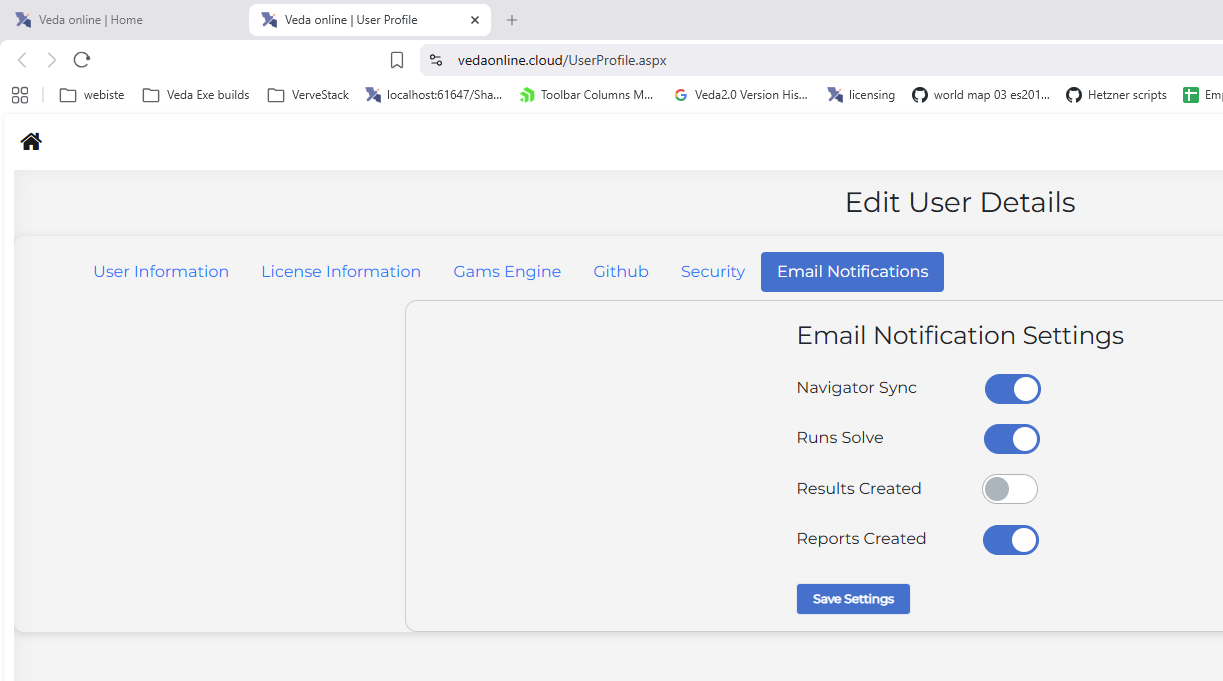
User Profile – Email Notifications
Navigator Sync – Emails for model synchronization
Runs Solve – Emails when a model run (solve) completes
Results Created – Emails when results are processed
Reports Created – Emails when reports are processed
Important Notes
These settings apply to all models
You must click Save Settings for changes to take effect
Saved settings automatically populate Email checkboxes in Navigator and Run Manager
2. Navigator – Sync Email Checkbox
In the Navigator module, an Email checkbox is available next to the Synchronize button.
Behavior

Navigator – Sync email checkbox
Default state comes from your User Profile
If unchecked, no email is sent for that sync
You can check the box to send email for this one sync only
Override Clarification
This checkbox temporarily overrides the saved profile setting
It does not permanently change your User Profile preferences
Recipient Rule
Sync emails are sent only to the user
Model collaborators never receive Sync emails
3. Run Manager – Solve Email Checkbox
In the Run Manager, an Email checkbox is available in Run Settings.
Behavior
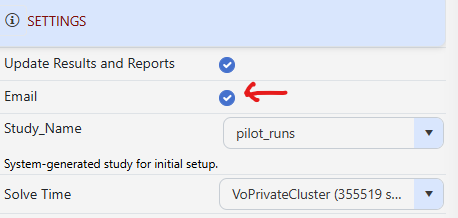
Run Manager – Email checkbox
Default state comes from your User Profile
When checked, an email is sent after the run completes
The email contains Run Status and Report Status
Override Clarification
You may enable or disable the checkbox for a specific run only
This does not modify your saved User Profile settings
Recipient Rule
Email is sent to:
The user
Study collaborators (only if the study is shared)
4. Results – Email Behavior
Emails for Results are triggered only when results are processed from Operation Settings.
Key Rules
There is no Email checkbox in the Results module
Email behavior is controlled only by User Profile settings
Emails are sent only to the user
Study collaborators never receive Results emails
5. Reports – Email Behavior
Emails for Reports are triggered only when reports are processed from Operation Settings.
Key Rules
There is no Email checkbox in the Reports module
Email behavior is controlled only by User Profile settings
Emails are sent to:
The user
Study collaborators
Important Difference: Results vs Reports
Feature |
Results |
Reports |
|---|---|---|
Email override checkbox |
No |
No |
Controlled by User Profile |
Yes |
Yes |
Email sent to collaborators |
No |
Yes |
6. Summary – Email Permissions by Module
Module |
Email sent by default?* |
Can change per action? |
Sent to collaborators? |
|---|---|---|---|
Sync |
Yes (based on profile) |
Yes |
No |
Solve |
Yes (based on profile) |
Yes |
Yes |
Results |
No |
No |
No |
Reports |
Yes (based on profile) |
No |
Yes |
* Default behavior depends on User Profile settings.
7. System Emails (Not User-Controlled)
The following system-level emails are always sent and are not affected by User Profile email settings:
Event |
Email Sent To |
|---|---|
New user registration |
User, Admins |
Licensing notifications |
User, Admins |
Resource purchased |
User, Admins |