Run Manager
Introduction
The Run Manager is used to compose and submit model runs
Each model run is based on a Case definition comprising Run Manager Groups :
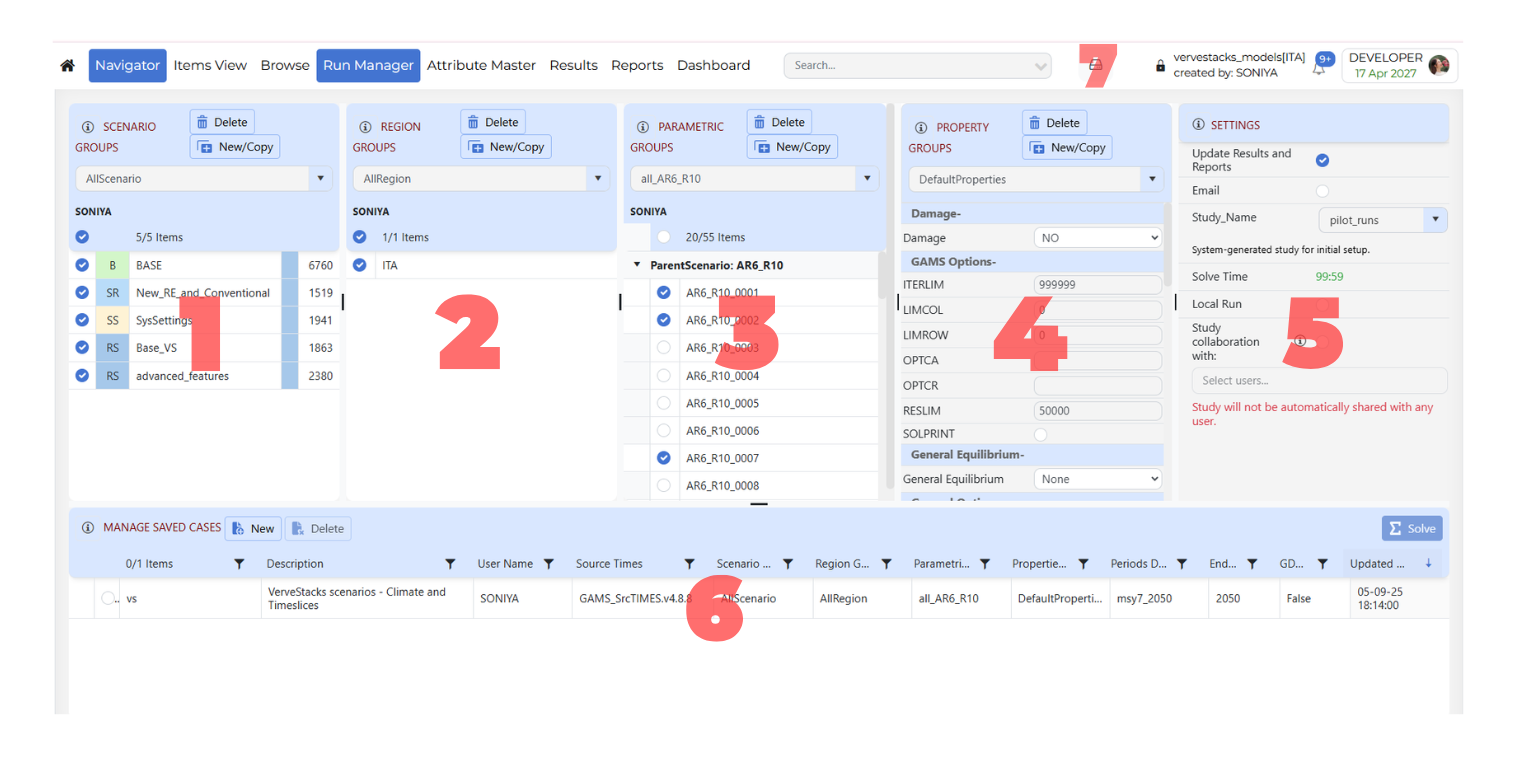
How to use it?
1-4 Run Manager Groups
The first four sections of Run Manager are:
1 - Scenario Groups: Check BASE/SysSettings and the list of scenarios to be included in a “cluster” that is then given a name for inclusion later in a Case Definition for a model run.
2 - Region Groups: Designation of the regions to be included in the Group definition.
3 - Parametric Groups:
Note
Coming soon. This section will be updated to describe the Parametric Groups in Veda Online.4 - Property Groups: Which GAMS switches are to be employed for the run.
Group Actions
The first four group sections support common actions such as creating, updating, and deleting groups.
New/Copy Groups Create/Edit/Delete Groups
Click New/Copy button.
Enter the required group name in the text box.
Click Save button.
The new group will be added to the list.
Update Groups
Select the required saved group from the dropdown.
Modify the required checkboxes, selections, expandable items, or property values.
After making changes, the Update Group button appears.
Click Update Group to save the modified group.
Delete Groups
Select the group you want to remove.
Click Delete button.
The selected group will be deleted.
Note
Delete removes the whole group, not just individual selected items.
Update Group is used only after changing the selected items or settings for an existing group.
The item count helps you quickly confirm how many items are included in the selected group.
Depending on the section, the group may contain scenarios, regions, parametric items, or property settings.
Check the selected group carefully before deleting it.
5 - Settings panel
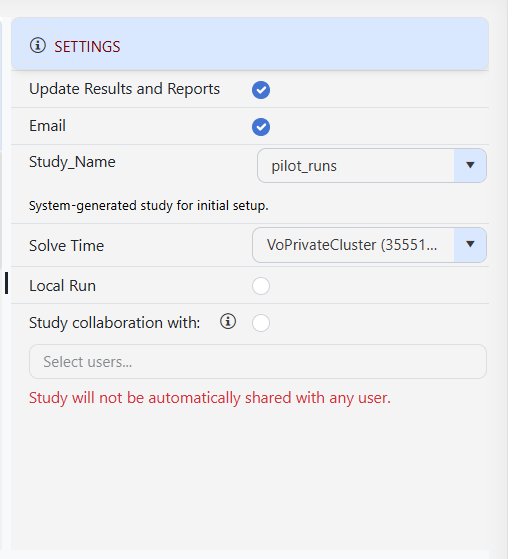
Update Results and Reports
This option allows you to update the results and reports for the selected case.
This option is not supported with Local Run option.
Email
This option allows you to send an email notification when the case is solved.
Study Name
Note
Coming soon. This page will describe the Study Name in Veda Online.Solve Time
This section displays the available solving resources that can be used to run the case.
Local Run Solving a Locally
The Local Run option allows the user to execute the case using their local system environment, provided the required setup is available.
Study Collaboration with
Study Collaboration is used when a model owner wants to allow other users to view or work on a specific study. When the study is shared, the names of the users who have access to that study are displayed in the “Study collaboration with” section.
6 - Manage Saved Cases
Review and manage saved case definitions, then select one or more cases to run.
Create New Case
Create a New Case by providing the core information for the case definition
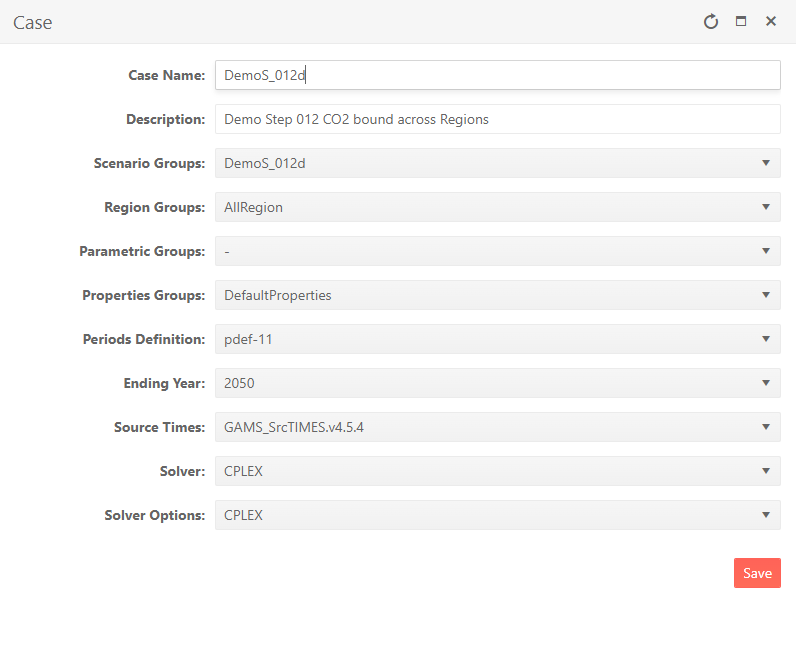
Case Name - name of the case
Description - description of the case
Scenario Group - scenarios to be included in this run
Region Group - regions to be included in this run
Parametric Group - driver scenario for a suite of runs
Properties Group - what GAMS options/switch are to be employed
Periods Definition - period definition for the run
Ending Year - last period for the run
Source TIMES - where does the TIMES code reside
Solver - which solver is to be used
Solver Options - which solver options to use
GDX References - GDX files to be used for freezing periods, elastic demand base prices or IRE bounds/prices
Delete Case
Select the case you want to delete.
Click Delete button.
The case will be deleted.
Edit Case
Double click on the case to open a summary window.
Modify the required information.
Click Save button.
The case will be edited.
Case History
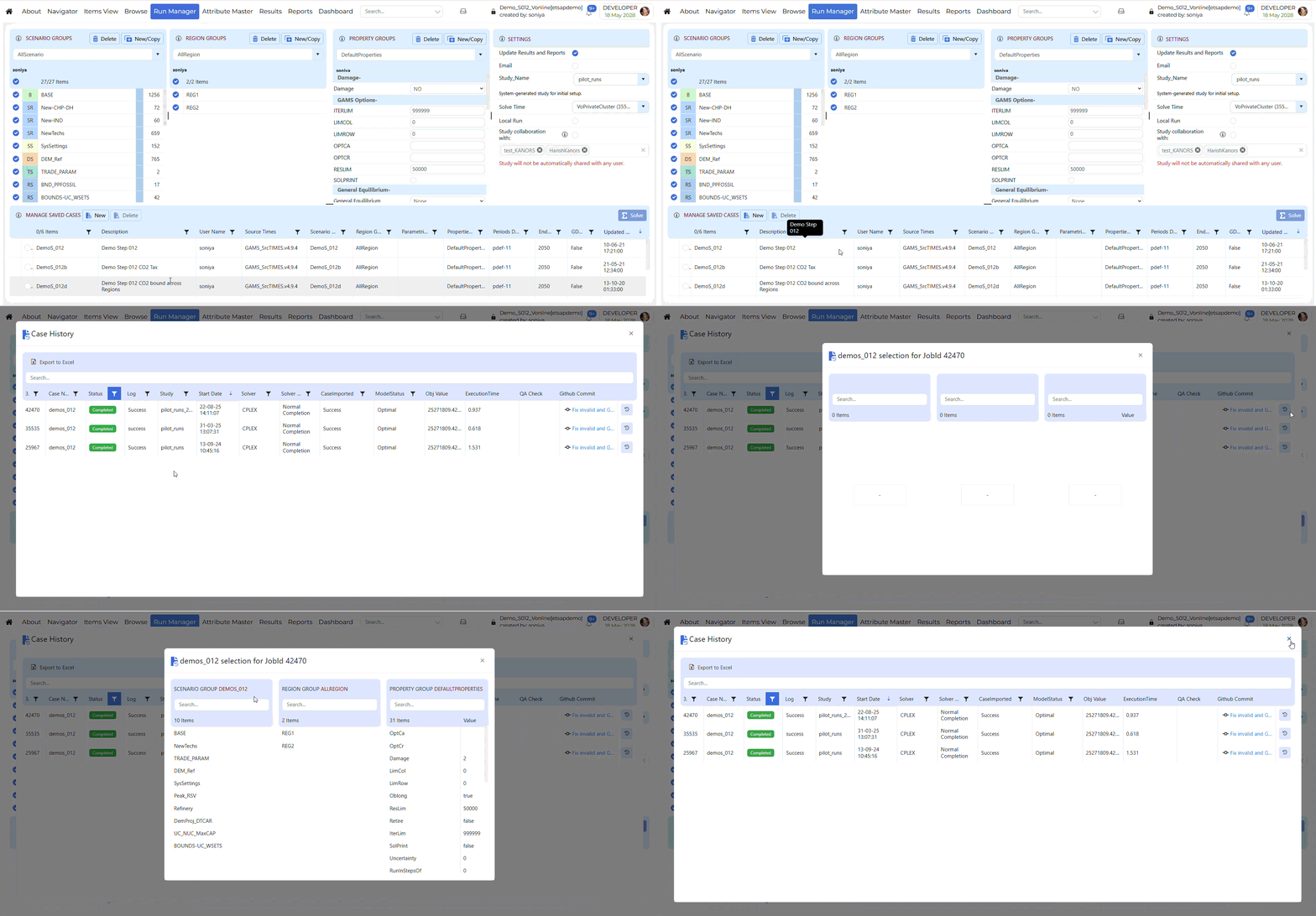
When you right-click a saved case, a context option named Case History is shown.
Clicking Case History opens a window that shows previous execution records for the selected saved case.
Group history action: Each case history row includes an action button on the right side. Use this button to open the group history for that specific case execution.
Export to Excel: Use this option to export the case history details to an Excel file.
Model run submission/Solve Case Solving a Case

Select one (or more) of the cases in the Managed Save Cases section and click Solve button.
Solve status of model case can be tracked in JobsDashboard.
Modifying RUN files
There are new attributes to write TIMES switches or GAMS code at five different locations in the RUN file. Further, these declarations can also be made at the top or bottom of scenario DD files (last two attributes in the table below). The attributes are supported by regular INS/DINS tables, in any scenario file or in SysSettings.
Attribute |
Location |
Alias |
|---|---|---|
RFCmd_GAMS |
<GAMSOPTIONS> |
RFCmd_G, RFCmd |
RFCmd_OPTIMIZER |
<OPTIMIZER> |
RFCmd_O |
RFCmd_FLAGS |
<SET FLAGS> |
RFCmd_F |
RFCmd_DD |
<INCLUDE DD FILES> |
RFCmd_D |
RFCmd_GLOBAL |
<GLOBAL Parameters> |
RFCmd_Glb |
SFCmd_top |
top of the scen DD file |
SFCmd_T, SFCmd |
SFCmd_bot |
bottom of the scen DD file |
SFCmd_B |
There is no need to modify the RUN file template manually.
Commands will be ordered by Value column; only rows with value>0 will be considered. If multiple scenarios send commands to the RUN file, the blocks will be ordered as per the order of scenarios in the case definition.
Note
This also opens up some new possibilities. For example, you can run parametric scenarios where base prices for elastic demands are picked up from different Reference cases.
These examples are available in the Advanced Demo model.
~TFM_INS |
||||
|---|---|---|---|---|
Attribute |
Other_Indexes |
Value |
Comment |
|
RFCmd_F |
$SET BENCOST YES |
1 |
Written to FLAG section of RUN file |
|
RFCmd_F |
$SET ANNCOST LEV |
2 |
||
RFCmd_F |
$SET WAVER YES |
3 |
||
RFCmd_G |
GAMS statement 1 |
1 |
Written GAMSOPT section |
|
RFCmd_Glb |
GAMS statement 2 |
2 |
Written to Global parameters section |
|
RFCmd_Glb |
GAMS statement 3 |
3 |
||
SFCmd_T |
$OFFEPS |
1 |
Top of the scen DD file |
|
SFCmd_B |
GAMS statement A |
3 |
Bottom of the scen DD file |
|
SFCmd_B |
GAMS statement B |
4 |
If you want to use single quotes <’> in your instructions, then it is necessary to use a DINS table, as shown below. DINS tables need process or commodity specification. You can use any valid process instead of IMPNRGZ; it will have no impact on the outcome.
~TFM_DINS-AT |
||
|---|---|---|
RFCmd_DD |
Other_Indexes |
pset_pn |
3 |
set nr(all_reg); |
IMPNRGZ |
4 |
nr(all_reg)=yes$(not r(all_reg)); |
IMPNRGZ |
5 |
*– |
IMPNRGZ |
6 |
*Python embedded code to remove invalid TU and TB trade processes |
IMPNRGZ |
7 |
set cb_p(r,p) all crossborder processes involved |
IMPNRGZ |
8 |
*– |
IMPNRGZ |
9 |
; |
IMPNRGZ |
10 |
cb_p(r,p)=yes$gr_genmap(r,p,’CrossBorderTrade’); |
IMPNRGZ |
11 |
*– |
IMPNRGZ |
12 |
embeddedCode Python: |
IMPNRGZ |
13 |
ncb_p = [] |
IMPNRGZ |
14 |
for r,p in gams.get(‘cb_p’): |
IMPNRGZ |
15 |
*– |
IMPNRGZ |
16 |
*– |
IMPNRGZ |
17 |
*– |
IMPNRGZ |
18 |
gams.set(‘ncb_p’,ncb_p) |
IMPNRGZ |
19 |
endEmbeddedCode ncb_p |
IMPNRGZ |
20 |
ACT_BND(R,T,P,S,’UP’)$ncb_p(r,p) = EPS; |
IMPNRGZ |