Navigator
Introduction
The Navigator provides a comprehensive view of all the templates in the various folders managed by Veda for the current model.
The Navigator is the main vehicle for accessing, importing, and coordinating the various templates that make up a model.
Its main screen is divided into sub-windows according to the various types of templates managed by Veda.
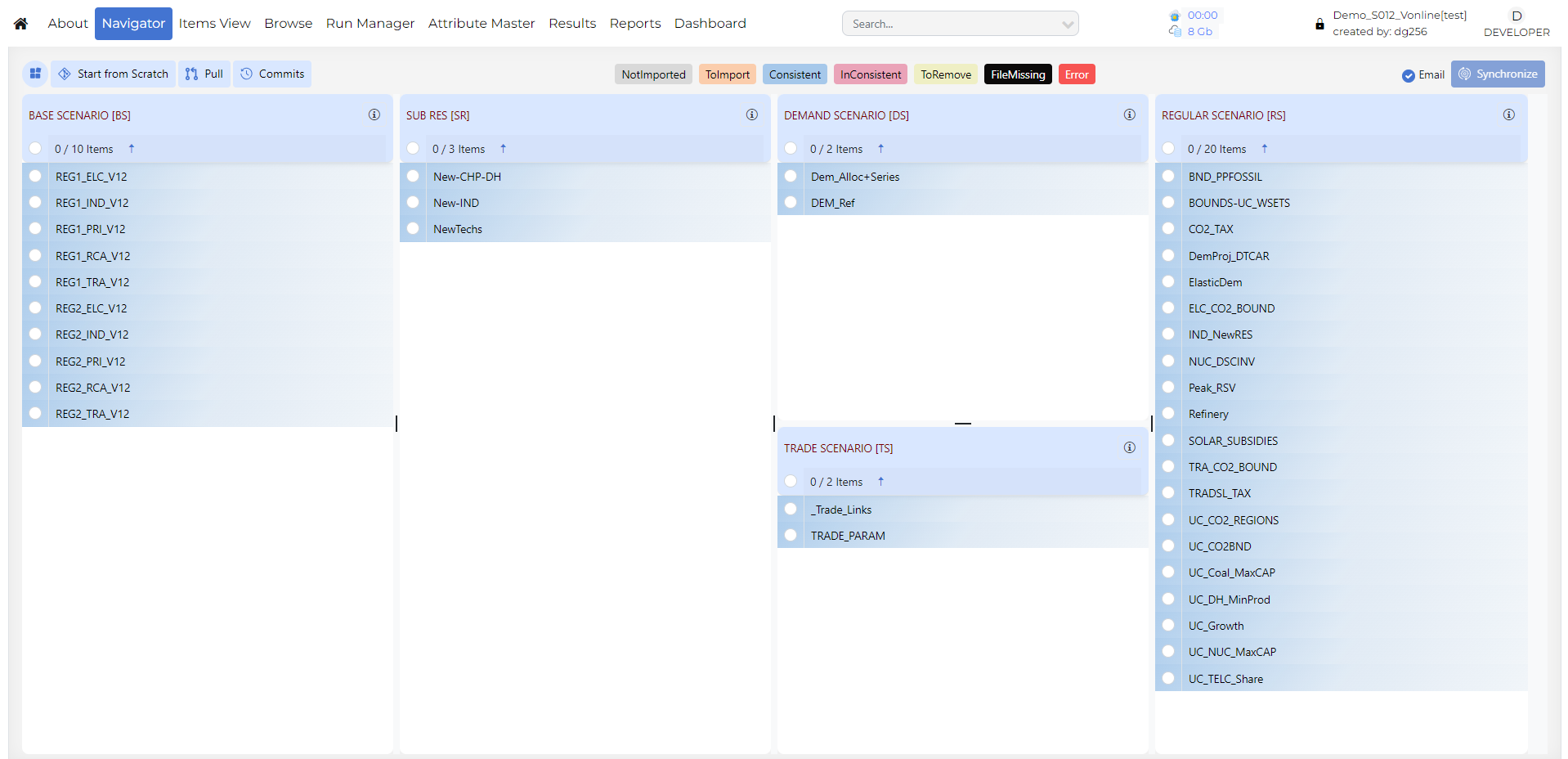
Quadrants
SysSetting: Used to declare the basic structure of the model, including regions, time slices, start year, and synchronization settings. There is only one such file, and it has a fixed name that stands for System Settings.
Base scenario [BS]: Templates used to set up the base-year (B-Y) structure of the model, including existing commodities, current process stock, and base-year end-use demand levels. The B-Y templates are named as
VT_<workbook name>_<sector>_<Version>(for example,VT_REG_PRI_V1). The number and names of these templates depend on the model structure and on how the input data is organized. The B-Y templates are introduced inDemoS_001.BY_Trans: Transformation files used to update information already included in the B-Y templates or to insert new information for existing processes. They work like scenario files, but their rule-based filters and update or insert changes apply only to processes and commodities that already exist in the B-Y templates. The
BY_Transfile is introduced inDemoS_009.
BaseTrans: Operations on the BS templates.
SubRES [SR]: Files used to introduce new commodities and processes in the RES that are not part of the B-Y templates. Unlike B-Y templates, SubRES files are region-independent. Each SubRES file has a corresponding transformation file for adding region-specific process attributes, including availability by region. The naming conventions are
SubRES_<name>andSubRES_<name>_Trans.Regular Scenarios [RS]: Scenario files used to update existing information or insert new information in any part of the RES, including B-Y templates, SubRES files, and Trade files. They are also used to include additional user constraints in the model. The naming convention is
Scen_<scenario name>. These files can insert or update attributes for previously declared RES components, but they cannot add new commodities or processes. Scenario files are introduced inDemoS_004.Demand Scenarios [DS]: Demand templates include the information required to project end-use demands for energy services in each region, such as macroeconomic drivers and sensitivity series. Multiple demand files may be used to model different demand growth scenarios. The naming convention is
ScenDem_<scenario name>. This section also containsDem_Alloc+Series, which assigns a demand driver and a sensitivity or elasticity series to each end-use demand in each region. Demand files and tables are described inDemoS_010.Trade Scenarios [TS]: This section contains files where unilateral and bilateral trade links between regions are declared, together with associated data where needed. It also contains all attribute specifications for trade processes. Multiple trade files may be used for different trade scenarios or commodities. The naming convention is
ScenTrade_<scenario name>. Trade files are introduced inDemoS_005.Parametric Scenarios [PS]: Functionality designed to support multiple runs and parametric analysis through programmed multi-value scenario sets.
No Seed Values [NSV]: Files that do not provide seed values to any other scenario. These are processed in parallel. Veda identifies which files can be converted into NSV scenarios. This feature was introduced in 2019.
Note
1 contains comprehensive information about the model. Veda will not synchronize without this file.
2 and 3 are calibration templates for the base year.
5 to 8 are groups of flexible, rule-based scenario files.
How to use it?
Toolbar actions

Options Menu – Provides access to additional Navigator features:
NoSeedValue Scenario
Note
Coming soon. This section will be updated to describe the NoSeedValue Scenario in Veda Online.Tag Details
Note
Coming soon. This section will be updated to describe Tag Details in Veda Online.Model Trade Links
Note
Coming soon. This section will be updated to describe Model Trade Links in Veda Online.Sync Logs
Note
Coming soon. This section will be updated to describe Sync Logs in Veda Online.Delete Logs
Note
Coming soon. This section will be updated to describe Delete Logs in Veda Online.
Start from Scratch – Deletes the previous model data from the database and pulls all files from the GitHub repository. You then need to synchronize the model again. Reports module data is not deleted.
Pull – Pulls all files from the Git repository without changing your data in the VedaOnline database.
Commits – Lets you review your GitHub commits directly in VedaOnline.
File Status – Provides feedback about the status of the various files and the integrated database managed by Veda, according to the color legend at the bottom of the form.
Not imported – not yet read into the database
Imported – selected for importing with the next SYNC
Consistent – template is in sync with the database
Inconsistent – file has been modified after the last SYNC operation
ToRemove – previously imported template now flagged for removal from the database
FileMissing – a previously imported template that no longer exists in the template folder
Error – the file has thrown an error
Email Checkbox – If this checkbox is cleared, VedaOnline will not send an email after synchronization finishes.
Synchronize – Processes all templates in the application folder that are marked in the selected files list as
ToImport(orange).Synchronize imports all selected Excel workbooks into the Veda database. Processing can be observed live in the right-hand logging window or on the Jobs Dashboard page.
An email is sent to the associated user upon completion. Whether the run succeeds or fails, the sync log details are included in the completion email.
After synchronizing a model, you can return to the Navigator.